Atari Jaguar (Experimental)
Warning
The Atari Jaguar application is currently designated as an experimental application.
This designation has been applied due to the following:
- The underlying emulator has known compatibility issues across the Jaguar game library.
Applications marked as experimental are flagged with an "Experimental" tag in the feed editor's Select Application Dialog, but are otherwise fully available for use in both the editor and the webЯcade player. There is no separate setting required to enable them.
Overview
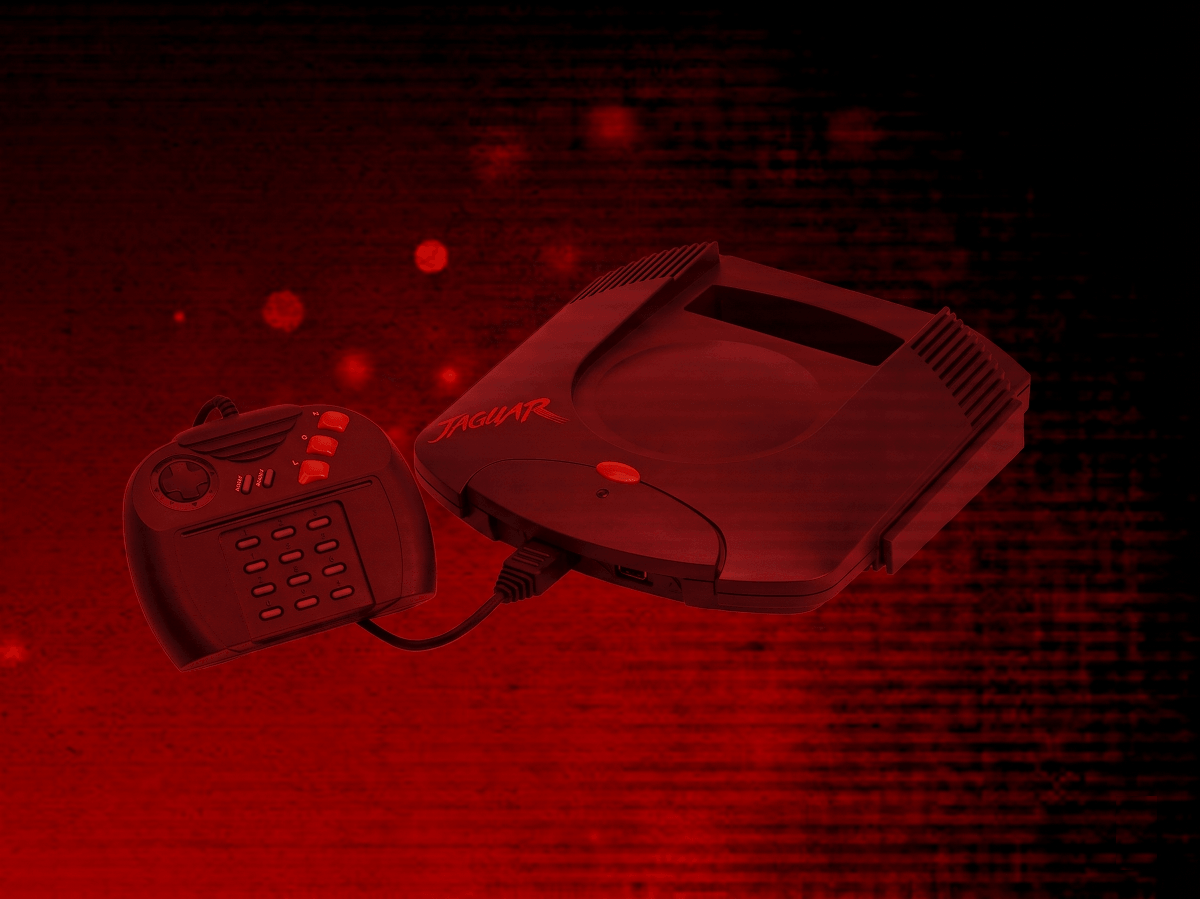
The Atari Jaguar application is an emulator for the Atari Jaguar game console, a 64-bit cartridge-based console released by Atari in 1993.
Controls
The emulator supports up to two controllers. The keyboard and gamepad mappings are listed in the tables below.
Keyboard
Keyboard support, including the direct numeric keypad passthrough, is only available for controller one.
| Name | Keys |
Comments |
|---|---|---|
| Move |     |
|
| Option |  |
|
| Pause |  |
The Right Shift Key. Displays the webЯcade pause screen. |
| Fire C |  |
Default mapping. Can be changed via the Mappings tab in the editor. |
| Fire B |  |
Default mapping. |
| Fire A |  |
Default mapping. |
| Keypad "8" |  |
Default mapping. |
| Keypad "7" |  |
Default mapping. |
| Keypad "9" |  |
Default mapping. |
| Keypad "4" |  |
Default mapping. |
| Keypad "6" |  |
Default mapping. |
| Keypad 1-9, 0 |  - -  |
Direct keypad passthrough. Presses the keypad key regardless of the Keypad screen being open. |
| Keypad * |  |
|
| Keypad # |  |
|
| Show Keypad |  |
The Left Control Key. Hold, then release, to open the on-screen Keypad screen. |
| Show Pause Screen |  |
|
| Show Pause Screen (Alternate) |
+ |
Hold the Left Control Key, then press the Right Shift Key before releasing Control, to show the webЯcade pause screen instead of the Keypad. |
Gamepad
Gamepad support is available for both controllers.
| Name | Gamepad |
Comments |
|---|---|---|
| Move |  or or  |
|
| Option |  |
Not available for Xbox and not recommended for iOS (see alternate) Press the Menu (Start) Button. |
| Option (Alternate) |
 and and  |
Hold down the Right Trigger and click (press down) on the Right Thumbstick. |
| Pause (Jaguar) |  |
Not available for Xbox and not recommended for iOS (see alternate) Press the View (Back) Button. Sends the real Jaguar Pause button press to the game (the same signal the real Jaguar controller's Pause button sends) — this is not the webЯcade pause screen, and what happens depends on the game. |
| Pause (Jaguar) (Alternate) |
and  |
Hold down the Right Trigger and click (press down) on the Left Thumbstick. |
| Fire C |  |
Default mapping. Can be changed via the Mappings tab in the editor. |
| Fire B |  |
Default mapping. |
| Fire A |  |
Default mapping. |
| Keypad "8" |  |
Default mapping. |
| Keypad "7" |  |
Default mapping. |
| Keypad "9" |  |
Default mapping. |
| Keypad "4" |  |
Default mapping. Suppressed while held down for the Show (Grid) Keypad combo below. |
| Keypad "6" | |
Default mapping. |
| Radial Keypad |  |
Move the Right Thumbstick in a direction to quick-select a key. See Keypad. |
| Show (Grid) Keypad | and |
Hold down the Left Trigger and click (press down) on the Right Thumbstick. See Keypad. |
| Show Pause Screen | and |
Not available for Xbox. Hold down the X Button and press the View (Back) Button. Displays the webЯcade pause screen. |
| Show Pause Screen (Alternate) |
and |
Hold down the Left Trigger and click (press down) on the Left Thumbstick. Displays the webЯcade pause screen. |
Keypad
The real Jaguar controller includes a 16-key numeric keypad (0-9, *, #) used by many games for menus, codes, and secondary actions. webЯcade provides two different ways to interact with it:
Radial Keypad (quick-select)
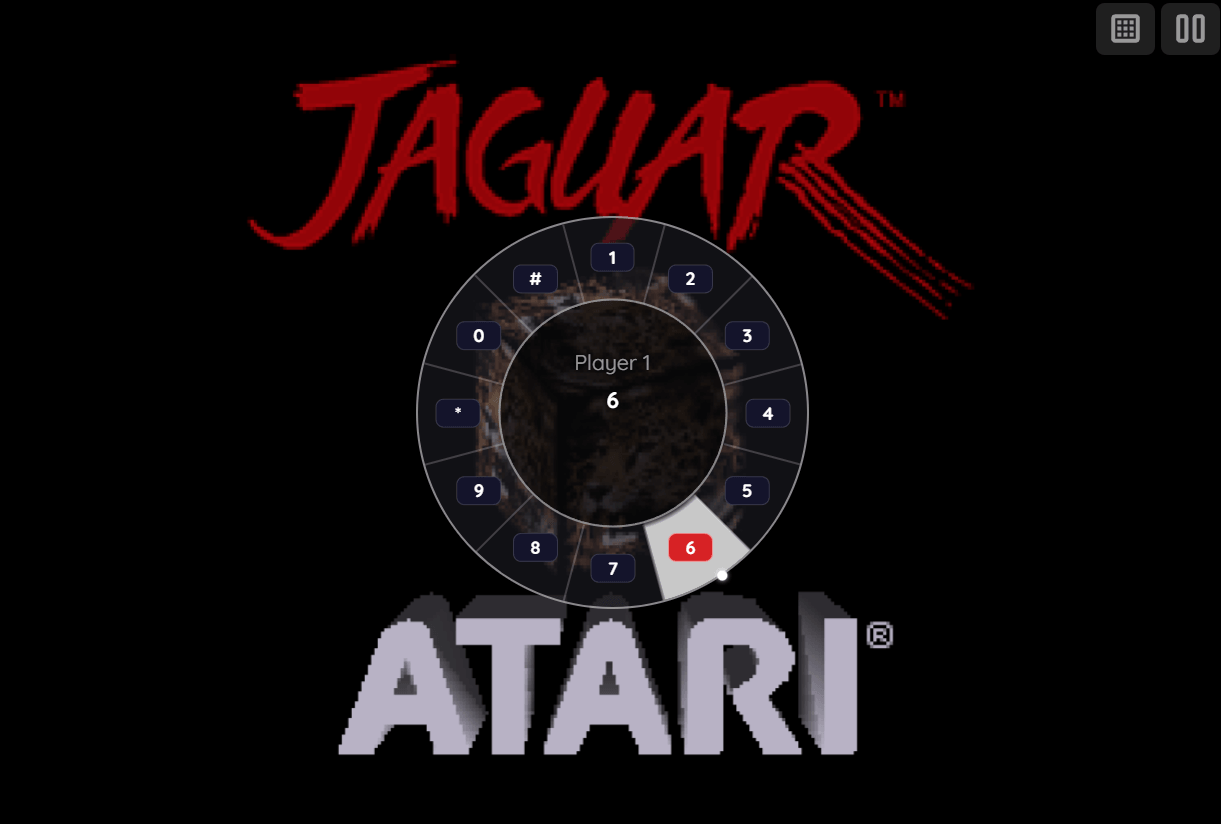
Moving the right analog stick in a direction brings up a 12-key radial (pie-menu) selector, arranged clockwise from 12 o'clock: 1, 2, 3 (top), 4, 5, 6 (right), 7, 8, 9 (bottom), *, 0, # (left). Point the stick toward a key and confirm with either the Left or Right Bumper to press it. Releasing the stick back to center dismisses the selector without pressing anything.
| Name | Gamepad |
Comments |
|---|---|---|
| Show Radial Keypad / Choose Key | |
Suppressed while the Left Trigger is held down (to avoid conflicting with the grid Keypad combo below). |
| Press Key | or |
Grid Keypad
| Name | Gamepad |
Comments |
|---|---|---|
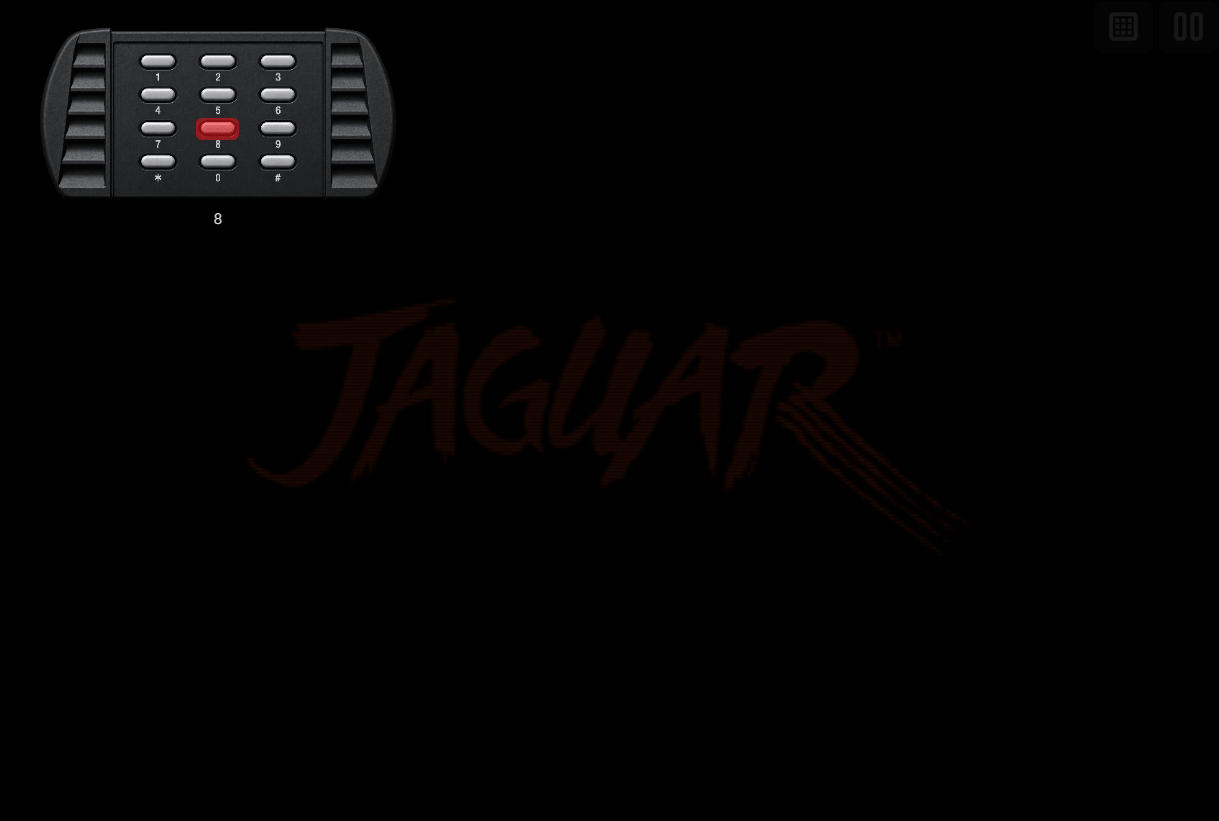
| Show Grid Keypad | and |
Hold down the Left Trigger and click (press down) on the Right Thumbstick. |
| Choose Key | or |
|
| Press Key | |
| Name | Keys |
Comments |
|---|---|---|
| Show Grid Keypad | |
Hold, then release, the Left Control Key. |
| Close Keypad | |
On-screen Controls
The Jaguar application includes a set of on-screen controls which are detailed below.
| Button | Description | |
|---|---|---|
| Keypad |  |
Opens the Grid Keypad screen. |
| Pause (Show Pause Screen) |  |
Displays the webЯcade pause screen. |
Whether these buttons are always displayed, or only displayed once touch, mouse, or keyboard input is detected, can be configured via the "On-screen controls" field on the Display Settings tab.
Pause Screen
The Jaguar application's pause screen provides access to application settings.
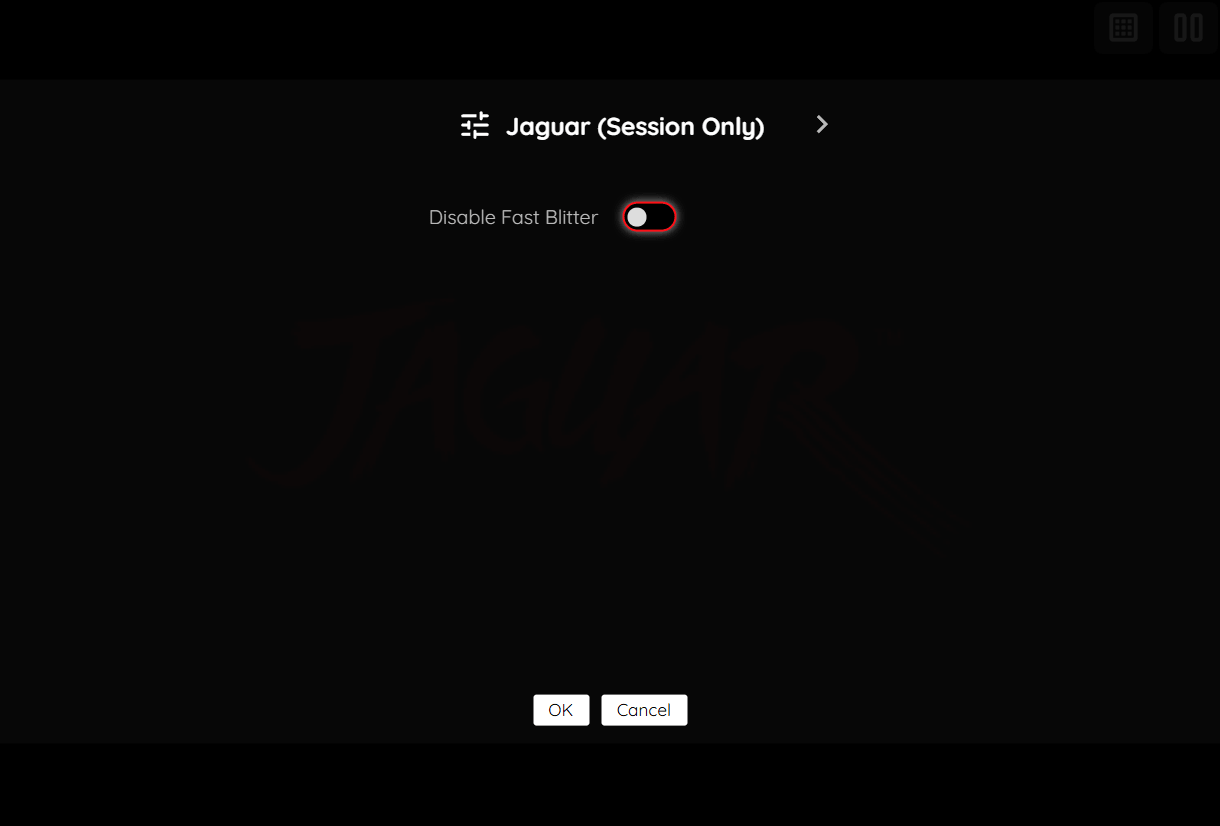
Jaguar Settings Tab (Session Only)
| Field | Description |
|---|---|
| Disable Fast Blitter | The Fast Blitter trades rendering accuracy for speed and is used by default. Enable this to fall back to the slower, more accurate blitter instead, for games with visual glitches. |
Display Settings Tab
| Field | Description |
|---|---|
| Screen size | The screen size to use when playing a game. Options include:
|
| Bilinear filter | The type of bilinear filter to apply to the output display. |
| On-screen controls | Toggle whether the on-screen controls should always be displayed, or only displayed once touch, mouse, or keyboard input has been detected. |
Feed
This section details how Atari Jaguar application instances can be added to feeds.
Type
The type name for the Atari Jaguar application is retro-virtual-jaguar.
| Type | Cheats | Shaders | Retro Achievements |
Low CPU |
|---|---|---|---|---|
retro-virtual-jaguar ⭐ |
✅ | ✅ | ✅ | x |
Note
The alias jaguar also currently maps to this application. In the future, the jaguar alias may be mapped
to another Atari Jaguar application (different emulator implementation) if it is determined to be a
more appropriate default.
Item Properties
The table below contains the properties that are specific to the Atari Jaguar application. These properties are specified in the props object of a feed item.
| Property | Type | Required | Details |
|---|---|---|---|
| rom | URL | Yes | URL to an Atari Jaguar ROM file (.j64 or .jag) or a zip file containing one. |
| cheat | URL | No | URL to a cheat file for the current ROM. See the Cheats Tab in the Item Editor for details on assigning cheat files. |
| zoomLevel | Numeric | No | A numeric value indicating how much the display image should be zoomed in (0-40). |
| disableFastBlitter | Boolean | No | Whether to disable the Fast Blitter (trading speed for rendering accuracy). Defaults to false. Can also be toggled per-session via the Jaguar Settings tab. |
| useRealBios | Boolean | No | How the cartridge boots. false (default) has the emulator emulate the boot sequence itself (faster boot, skips the boot animation). true runs the actual Jaguar boot ROM, which some titles require. The boot ROM is built into the emulator either way, so no file is needed for either setting. |
| mappings | Map of Strings (key-value pairs) | No | Game-specific mappings of the gamepad's mappable buttons to a Jaguar fire button or keypad key. See Controls and Keypad for the default mapping. The simplest way to set these mappings is to use the Mappings tab in the Feed Editor for the item (game). The following is a simple example of a set of mappings. The
|
| descriptions | Map of Strings (key-value pairs) | No | Custom display names for Jaguar keypad keys and fire buttons, shown in the on-screen keypad display and controls screen. The
|
Example
The following is an example of a complete feed that consists of a single Atari Jaguar application instance (type value of jaguar).
{
  "title": "Atari Jaguar",
  "categories": [
    {
      "title": "Atari Jaguar Games",
      "items": [
        {
          "title": "My Jaguar Game",
          "type": "jaguar",
          "props": {
            "rom": "https://<host>/mygame.j64"
          }
        }
      ]
    }
  ]
}