Apple IIGS
Overview
The Apple IIGS application is an emulator for the Apple IIGS personal computer.

Note
Many games exhibit compatibility issues and defects, and the application may exhibit instability.
BIOS Files
In addition to Apple IIGS disk images, BIOS files must be specified globally within the feed (See the Feed Properties Dialog and Apple IIGS Feed Properties sections).
| File | Hash (MD5) |
|---|---|
a2cffa2.zip |
a24d447d71a223343f5382f393fa80a7 |
apple2gs.zip |
ca86796676d3de0607661677b86a3ac7 |
Default Controls
The emulator supports one controller. The default keyboard and gamepad mappings are listed in the tables below. It is important to note that these are merely the default settings and can be modified on a game-by-game basis.
Keyboard
The Apple IIGS emulator passes keyboard input directly to the emulated computer. Most standard keys work as expected.
It is important to note that keyboard-based gamepad input should be disabled  to allow access to all keys (otherwise, some keys will be utilized for joystick input).
The following table contains the default keyboard joystick mappings.
| Name | Keys |
Comments |
|---|---|---|
| Move |     |
|
| Button 0 |  |
Default mapping. |
| Button 1 |  |
Default mapping. |
Gamepad
The default gamepad mappings are listed in the table below.
| Name | Gamepad |
Comments |
|---|---|---|
| Joystick |  or or  |
|
| Button 0 |  |
Default mapping. |
| Button 1 |  |
Default mapping. |
| Left Mouse Button |  |
Always active. Also available as a mappings key for additional actions. |
| Right Mouse Button |  |
Always active. Also available as a mappings key for additional actions. |
| Mouse Cursor |  |
Move the right analog stick to move the mouse cursor. |
| Mouse Cursor (Slow) |  and and |
Hold down the Right Trigger while moving the right analog stick for precision slow movement. |
| Show Virtual Keyboard |  |
Not available for Xbox and not recommended for iOS (see alternate) Press the View (Back) Button. |
| Show Virtual Keyboard (Alternate) |
and  |
Hold down the Right Trigger and click (press down) on the Left Thumbstick. |
| Show Virtual Keyboard (Alternate) |
 and and  |
Hold down the Left Trigger and click (press down) on the Right Thumbstick. |
| Show Pause Screen | and |
Hold down the Left Trigger and click (press down) on the Left Thumbstick. |
| Show Pause Screen (Alternate) |
and |
Hold down the Left Trigger and click (press down) on the Right Thumbstick. |
Note
A physical mouse is also supported. Click the display to lock the mouse pointer, and press Escape to release it.
Note
Touch-based mouse input is not yet supported. Use a physical mouse or the right analog stick on a gamepad to control the cursor.
On-screen Controls
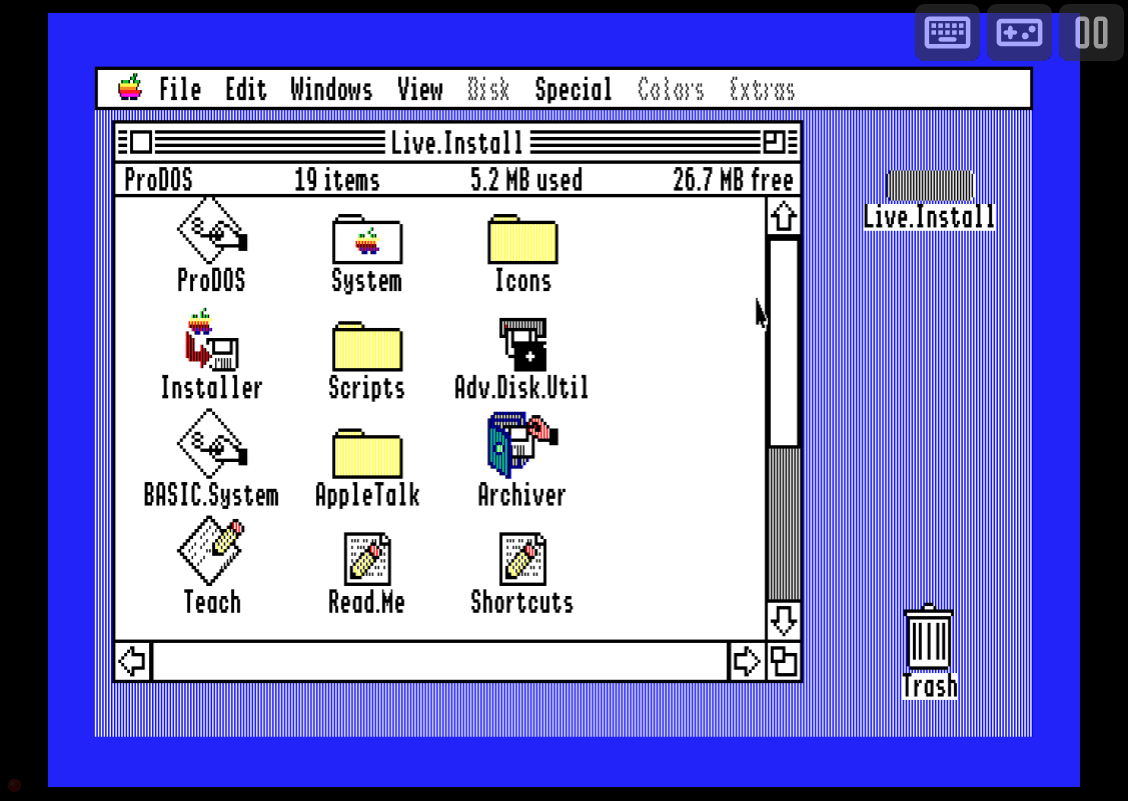
The Apple IIGS application includes a set of on-screen controls which are detailed below.
| Button | Description | |
|---|---|---|
| Virtual Keyboard |  |
Displays the Virtual Keyboard. |
| Toggle Gamepad Keyboard Mode |  |
Toggles whether or not the keyboard should be used for joystick input. When disabled, the full keyboard is used to map to the Apple IIGS keyboard. When enabled, a subset of the keyboard keys are used for joystick input. NOTE: This button is only visible if a physical keyboard key has been pressed. |
| Pause (Show Pause Screen) |  |
Displays the webЯcade pause screen. |
Virtual Keyboard
The Apple IIGS application includes a virtual keyboard that can be utilized on devices that don't have a physical keyboard readily available (mobile, Xbox, etc.).
Display of the virtual keyboard can be toggled via the "Virtual Keyboard" button within the On-screen Controls, or by pressing the View (Back) Button on a gamepad.
Special Keys
The virtual keyboard includes the following "special" keys.
| Key | Description | |
|---|---|---|
| Switch to Letters Mode |  |
Pressing this key will switch to the Letters Mode of the keyboard. |
| Switch to Numbers Mode |  |
Pressing this key will switch to the Numbers Mode of the keyboard. |
| Change Keyboard Position |  |
Toggles the keyboard between center and bottom positions on the screen. |
Letters Mode
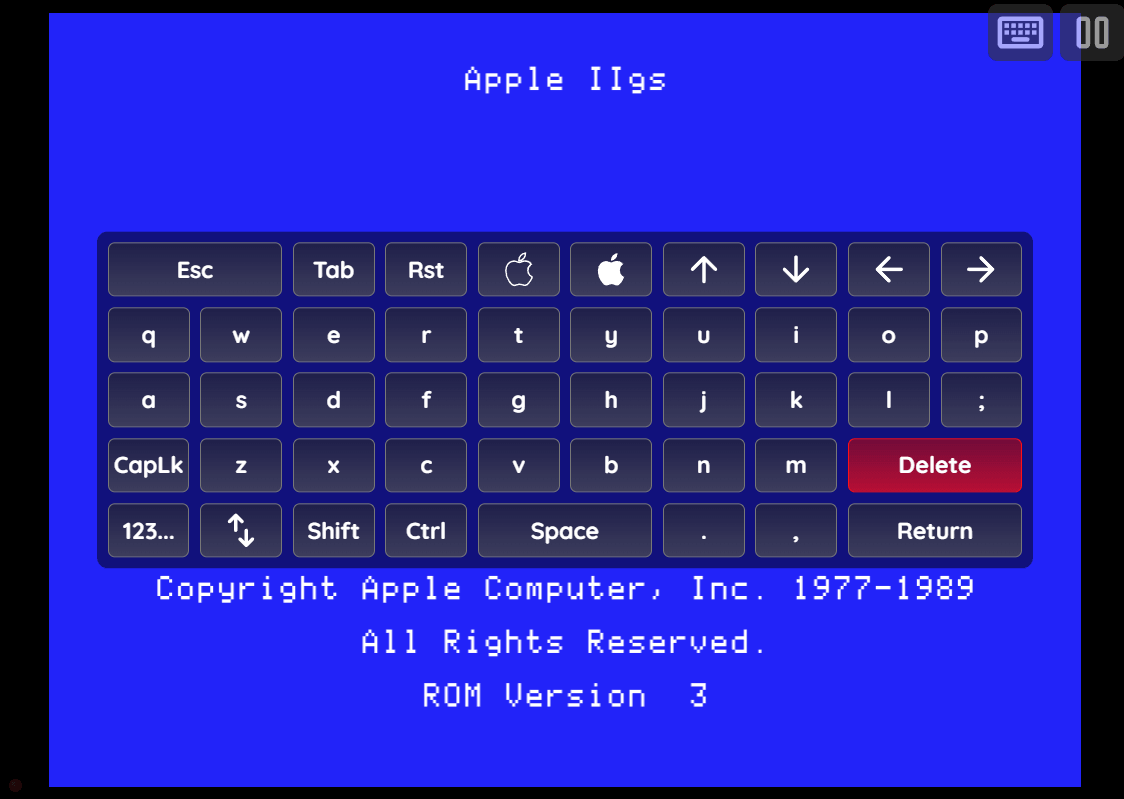
This mode contains letters, special Apple keys (Open Apple, Closed Apple, Reset), and navigation keys.
Numbers Mode
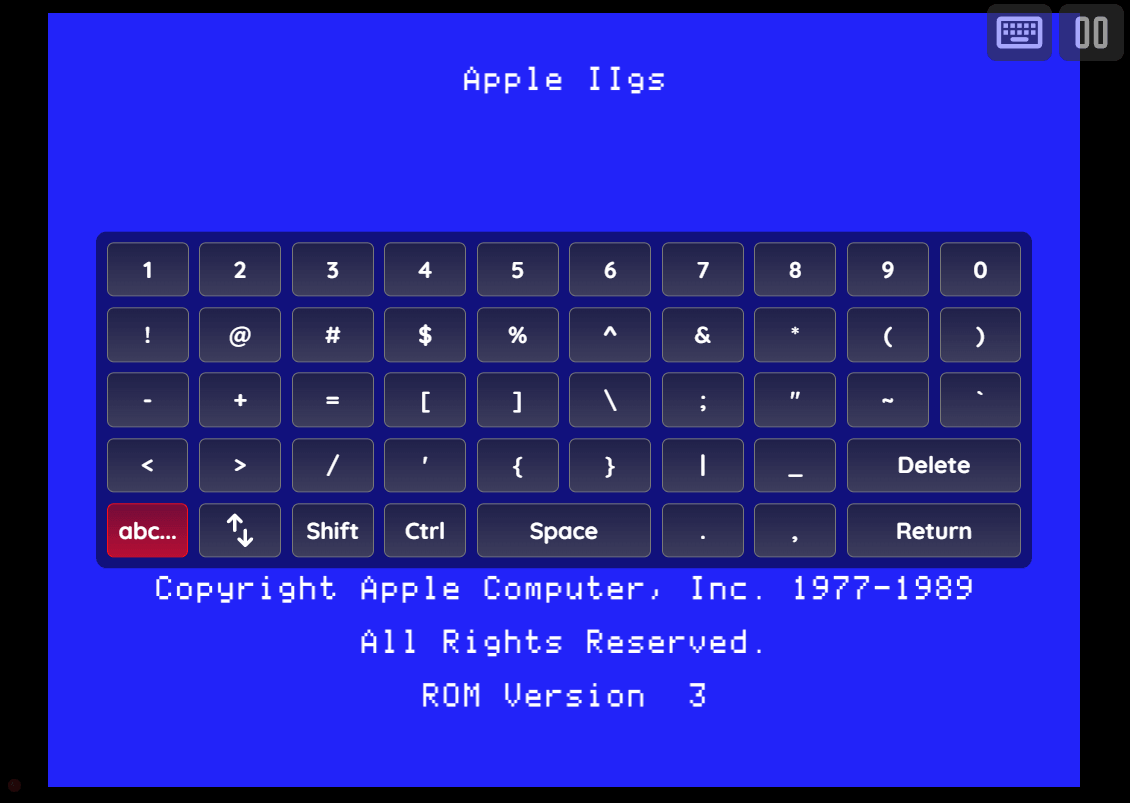
This mode contains numbers, symbols, and shifted symbol variants.
Pause Screen
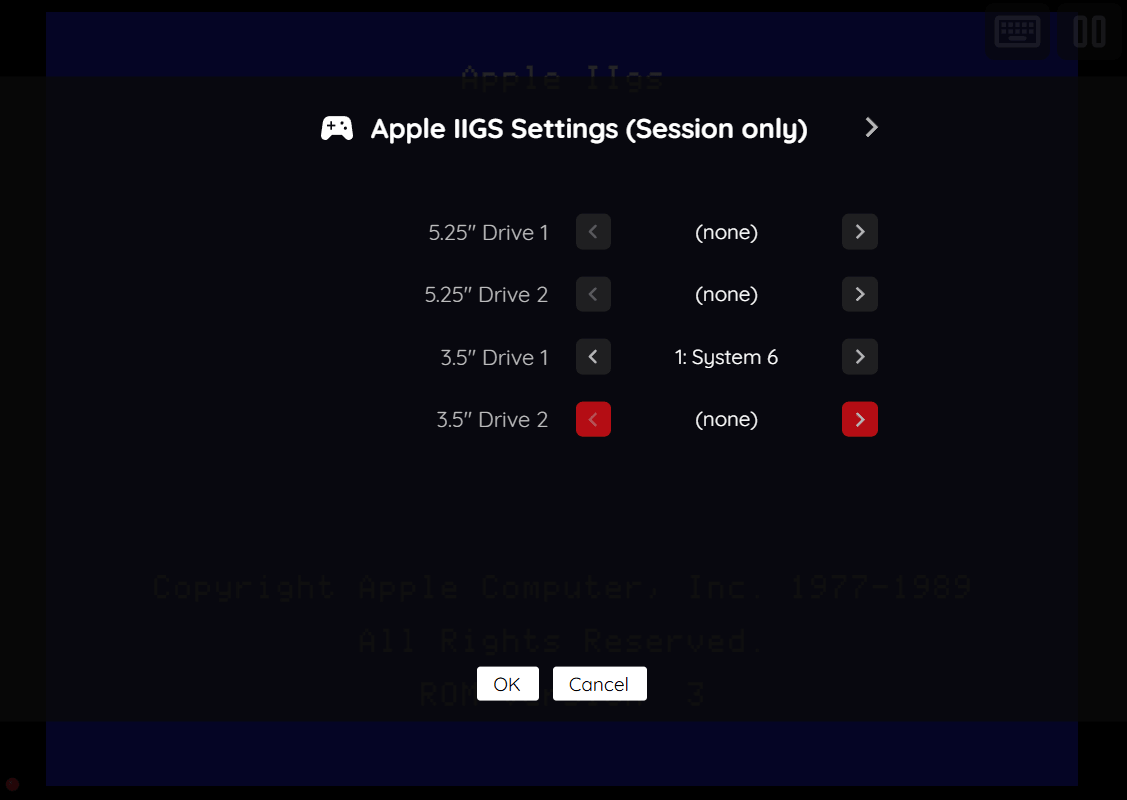
The Apple IIGS application's pause screen provides access to application settings.
Apple IIGS Settings (Session Only)
This tab is only available when a game has multiple disks and allows switching disks mid-session without modifying the saved feed.
| Field | Description |
|---|---|
| 5.25" Drive 1 | Switches the disk in the first 5.25" floppy drive. |
| 5.25" Drive 2 | Switches the disk in the second 5.25" floppy drive (only shown when the second drive is enabled). |
| 3.5" Drive 1 | Switches the disk in the first 3.5" floppy drive. |
| 3.5" Drive 2 | Switches the disk in the second 3.5" floppy drive (only shown when the second drive is enabled). |
Display Settings Tab
| Field | Description |
|---|---|
| Screen size | The screen size to use when playing a game. Options include:
|
| Bilinear filter | The type of bilinear filter to apply to the output display. Options include:
|
| On-screen controls | Toggle whether the on-screen controls should always be displayed, or only when keyboard, mouse, or touch is detected. |
Virtual Keyboard Settings
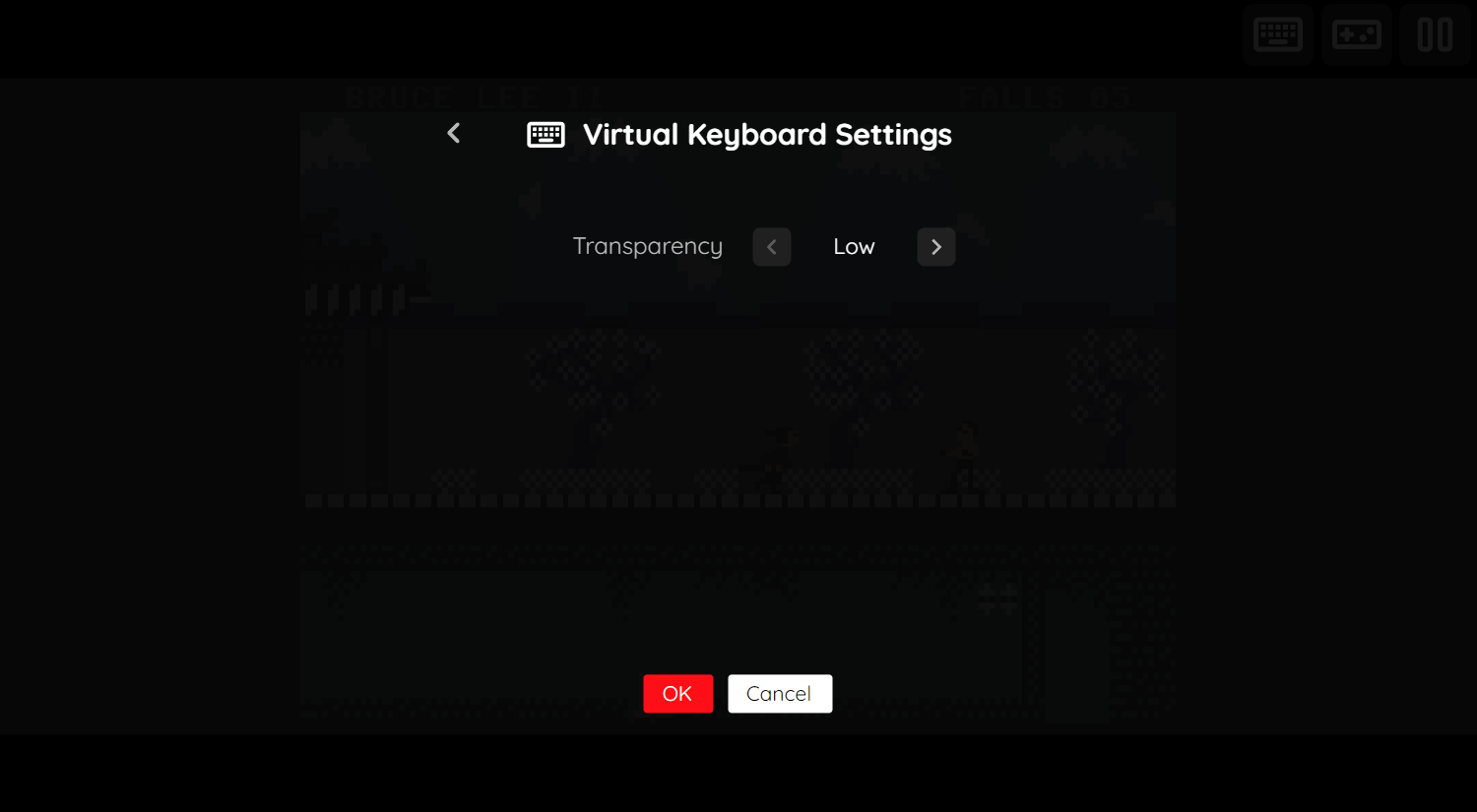
The Apple IIGS application's "Virtual Keyboard Settings" tab is detailed below.
| Field | Description |
|---|---|
| Transparency | Toggles the degree of transparency the virtual keyboard should have. A higher degree of transparency allows more of the game to be visible through the keyboard (which may make the keyboard itself less visible). |
Saving Changes to Media
This application supports persisting changes to a game's media (disk writes) into the browser's local storage or optionally to cloud-based storage.
Note
The ability to define blank disk images as part of an item's definition (similar to the Commodore 64 saveDisks feature) is not yet available for the Apple IIGS application. This capability is planned for a future release.
Feed
This section details how Apple IIGS application instances can be added to feeds.
Type
The type name for the Apple IIGS application is retro-mame-apple2gs.
| Type | Cheats | Shaders | Retro Achievements |
Low CPU |
|---|---|---|---|---|
retro-mame-apple2gs ⭐ |
x | ✅ | x | x |
Note
The alias apple2gs also currently maps to this application. In the future, the apple2gs alias may be mapped
to another Apple IIGS application (different emulator implementation) if it is determined to be a
more appropriate default.
Feed Properties
The table below contains global Apple IIGS feed properties. These properties must be specified in the props object of the feed's Feed Object.
| Property | Type | Required | Details |
|---|---|---|---|
| apple2gs_bios | Array of URLs | Yes | Array of URLs to Apple IIGS BIOS files or zip files containing them (see BIOS Files). |
Item Properties
The table below contains the properties that are specific to the Apple IIGS application. These properties are specified in the props object of a feed item.
| Property | Type | Required | Details |
|---|---|---|---|
| media | Array of URLs | Yes | Array of URLs to Apple IIGS disk image files (.2mg, .2meg, .hdv). |
| cpuSpeed | Numeric | No | The CPU speed to emulate.
|
| enable2nd525 | Boolean | No | Enable a second 5.25" floppy drive. Useful for games that require simultaneous access to two disks. Defaults to false. |
| enable2nd35 | Boolean | No | Enable a second 3.5" floppy drive. Useful for games that require simultaneous access to two disks. Defaults to false. |
| mappings | Map of Strings (key-value pairs) | No | Game-specific mappings of Apple IIGS keys and joystick controls to the gamepad. The simplest way to determine these mappings is by creating an Apple IIGS item in the Feed Editor and exporting it. The following is a simple example of a set of mappings. The
Note: |
| zoomLevel | Numeric | No | A numeric value indicating how much the display image should be zoomed in (0-40). |
Example
The following is an example of a complete feed that consists of a single Apple IIGS application instance (type value of apple2gs).
{
  "title": "Apple IIGS",
  "props": {
    "apple2gs_bios": [
      "https://<host>/a2cffa2.zip",
      "https://<host>/apple2gs.zip"
    ]
  },
  "categories": [
    {
      "title": "Apple IIGS Games",
      "items": [
        {
          "title": "My Game",
          "type": "apple2gs",
          "props": {
            "media": ["https://<host>/mygame.2mg"]
          }
        }
      ]
    }
  ]
}