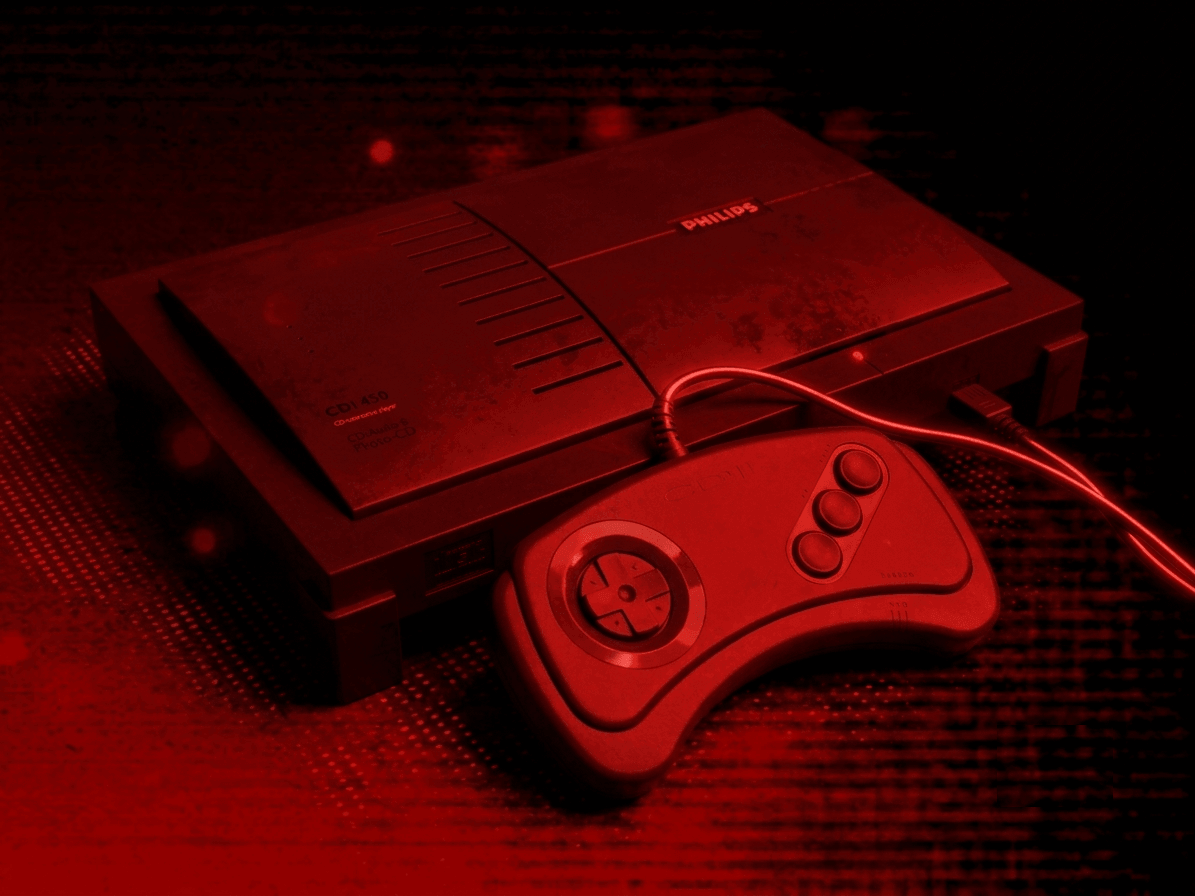
Philips CD-i
Overview
The Philips CD-i application is an emulator for the Philips CD-i multimedia entertainment system.
Important
The Digital Video Cartridge (DVC) is not supported. The DVC was an optional hardware add-on for the Philips CD-i that provided MPEG-1 video decoding, enabling full-motion video (FMV) playback in supported titles. Games that require the DVC may fail to load entirely or will not display their video content correctly.
Adding Games (Feed Editor)
Important
The Philips CD-i application only supports the .CHD disc file format (.ISO, .BIN, and .CUE are not supported).
To add a Philips CD-i game in the Feed Editor: if your content is on your computer, see Adding Items: Local Files; if it's already hosted online, see Adding Items: From URLs (Manual).
Important
Both the iOS Safari and Xbox Series X|S Edge browsers limit the amount of memory that can be consumed by a particular web application (such as webЯcade).
The current limit is around 450 megabytes. Therefore, loading larger disc sizes may fail.
To increase the likelihood of a game with a larger disc size loading, you can optionally choose to launch the game using a standalone-based link (versus launching the game within the webЯcade player or editor). See the Standalone section of this documentation for further information (On Xbox, you would most likely want to bookmark the direct link. On iOS, you would most likely want to add the game to the home screen).
BIOS File
In addition to Philips CD-i disc images, a Philips CD-i BIOS file must be specified globally within the feed (See the Feed Properties Dialog and Philips CD-i Feed Properties sections).
| File | Hash (MD5) |
|---|---|
cdimono1.zip |
c59f92647701428bc453976740eb75cf |
Controls
The emulator supports one controller. The keyboard and gamepad mappings are listed in the tables below.
Keyboard
| Name | Keys |
Comments |
|---|---|---|
| Move Cursor |     |
|
| Button 1 |  |
|
| Button 2 |  |
|
| Button 3 |  |
|
| Show Pause Screen |  |
Gamepad
| Name | Gamepad |
Comments |
|---|---|---|
| Move Cursor |  or or  |
|
| Button 1 |  |
|
| Button 2 |  |
|
| Button 3 |  |
|
| Show Pause Screen |  and and  |
Hold down the Left Trigger and click (press down) on the Left Thumbstick. |
| Show Pause Screen (Alternate) |
and  |
Hold down the Left Trigger and click (press down) on the Right Thumbstick. |
Mouse
The Philips CD-i application supports mouse input for cursor control. Click the display to lock the mouse pointer, and press Escape to release it.
Note
Touch-based mouse input is not yet supported. Use a physical mouse or the left analog stick on a gamepad to control the cursor.
Pause Screen
The Philips CD-i application's pause screen provides access to application settings.
Display Settings Tab
| Field | Description |
|---|---|
| Screen size | The screen size to use when playing a game. Options include:
|
| Bilinear filter | The type of bilinear filter to apply to the output display. Options include:
|
Internal Save Memory
The Philips CD-i application supports persisting the console's internal save memory into the browser's local storage or optionally to cloud-based storage. The contents will be persisted to storage whenever the pause screen is displayed (or the game is exited). Therefore, the menu should be displayed periodically for games that support saving to memory to ensure the state is properly persisted.
Feed
This section details how Philips CD-i application instances can be added to feeds.
Type
The type name for the Philips CD-i application is retro-mame-cdi.
| Type | Cheats | Shaders | Retro Achievements |
Low CPU |
|---|---|---|---|---|
retro-mame-cdi ⭐ |
x | ✅ | x | x |
Note
The alias cdi also currently maps to this application. In the future, the cdi alias may be mapped
to another Philips CD-i application (different emulator implementation) if it is determined to be a
more appropriate default.
Feed Properties
The table below contains global Philips CD-i feed properties. These properties must be specified in the props object of the feed's Feed Object.
| Property | Type | Required | Details |
|---|---|---|---|
| philipscdi_bios | URL | Yes | URL to the Philips CD-i BIOS file or a zip file containing it (see BIOS File). |
Item Properties
The table below contains the properties that are specific to the Philips CD-i application. These properties are specified in the props object of a feed item.
| Property | Type | Required | Details |
|---|---|---|---|
| discs | Array of URLs | Yes | Array of URLs to one or more (for multi-disc games) Philips CD-i game discs. The Philips CD-i application only supports the |
| zoomLevel | Numeric | No | A numeric value indicating how much the display image should be zoomed in (0-40). |
Example
The following is an example of a complete feed that consists of a single Philips CD-i application instance (type value of cdi).
{
  "title": "Philips CD-i",
  "props": {
    "philipscdi_bios": "https://<host>/cdimono1.zip"
  },
  "categories": [
    {
      "title": "Philips CD-i Games",
      "items": [
        {
          "title": "My Game",
          "type": "cdi",
          "props": {
            "discs": ["https://<host>/mygame.chd"]
          }
        }
      ]
    }
  ]
}